.ico)
Storage

Storage Space
It is important to monitor and check your storage space from time to time to ensure that you have space and capacity you need. The last thing you need when you are in the middle of a huge copy or move is a message indicating that one of your drives has reached 100% capacity.
In the Linux, there are many commands and tools that are at your disposal to ensure that adequate free space exists.
Device Names
Before the commands to query the Linux system are examined, it is important to understand how the drives are named.
Linux system can have multiple disks or disk parititions. In casual conversation, these are variously called disks, partitions, filesystems, volumes, and even directories.
A disk is a hardware device, which may be divided into paritions that act
as independent storage devices. Partitions are represented on Linux sytems
as special files that are usually found in the directly /dev.
Partitions are a lot like the drawers in a filing cabinet. Think of a single disk as the main filing cabinet, which is then split up into multiple partitions, much like drawers. This analogy is good as far as it goes, but it has its limits. Unlike filing cabinet drawers, disk partitions can be created in whatever size and quantity are convenient, within the limits of the disk's size. A typical disk has between one and a dozen partitions, although you can create more.
Disk partitions exist to help subdivide the disk into pieces with broadly different purposes, such as partitions for different OSs or for different types of data within an OS. For instance, it's common to create separate partitions for swap space (which is used much like RAM in case you run out of it), for user data files, and for the OS itself.
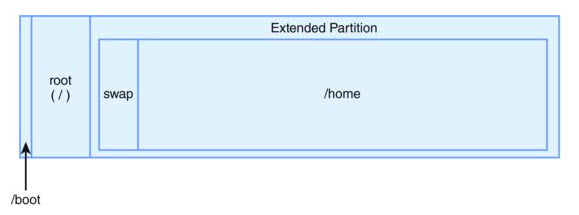 Hard disks and their partitions are frequently represented in diagrams
similar to this. This diagram displays partitions as subdivisions of the
disk, with partition sizes in the diagram more or less proportional to their
true sizes on the disk. Thus, in the diagram, you can see that
Hard disks and their partitions are frequently represented in diagrams
similar to this. This diagram displays partitions as subdivisions of the
disk, with partition sizes in the diagram more or less proportional to their
true sizes on the disk. Thus, in the diagram, you can see that
/boot is tiny compared to /home. As in the
figure, partitions are uninterrupted sections of a disk-that is,
/home, for instance, is a set of sectors with no other
partition carved out of its interior.
The most common partitioning scheme for x86 and x86-64 computers has gone by various names over the years, including master boot record (MBR), MS-DOS, and BIOS partitioning. It supports three types of partitions:
Primary: This is the simplest type of partition. A disk can have zero to four primary partitions, one of which may be an extended partition.
Extended: This is a special type of primary partition that serves as a placeholder for logical partitions. A disk may have at most one extended partition.
Logical: These partitions are contained within an extended partition. In theory, a disk can have billions of logical partitions, thus overcoming the limit of four primary partitions, but in practice you're unlikely to see more than about a dozen of them.
What is 'sda0'?
When naming drives, the name starts with a 2-letter prefix. In this case, sd is that prefix. In this case, sd refers to a SCSI mass-storage controller, not a device.
The next letter, a, refers to a device on a controller. In this example, sda refers to the first device on a scsi controller.
For hard drives, a letter is used to identify devices and is followed by a
number to identify partitions. A partition is a region on a hard disk so
that the operating system can manage information in each region separately.
sda1 refers to the first partition.
The following table lists some of the possible common device files types found in Linux:
| Value | Description |
|---|---|
| hd | device on the ide controller. |
| lp | parallel port (printers, scanners, etc). |
| sc | SCSI CD-ROM device |
| sd | SCSI device (HDD, memory stick, external mass storage devices such as CD-ROM drives on laptops, etc) |
| sr | device on the scsi controller |
Disk Free (df)
The df (disk free) program shows you the size, used space, and
free space on a given disk parition. If you supply a file or directory,
df describes the disk device on which that file or directory
resides. With no arguments, df reports on all mounted
filesystems.
To see a list of options, use:
df --help
Usage: df [OPTION]... [FILE]...
Show information about the file system on which each FILE resides,
or all file systems by default.
Mandatory arguments to long options are mandatory for short options too.
-a, --all include dummy file systems
-B, --block-size=SIZE scale sizes by SIZE before printing them; e.g.,
'-BM' prints sizes in units of 1,048,576 bytes;
see SIZE format below
--direct show statistics for a file instead of mount point
--total produce a grand total
-h, --human-readable print sizes in human readable format (e.g., 1K 234M 2G)
-H, --si likewise, but use powers of 1000 not 1024
-i, --inodes list inode information instead of block usage
-k like --block-size=1K
-l, --local limit listing to local file systems
--no-sync do not invoke sync before getting usage info (default)
--output[=FIELD_LIST] use the output format defined by FIELD_LIST,
or print all fields if FIELD_LIST is omitted.
-P, --portability use the POSIX output format
--sync invoke sync before getting usage info
-t, --type=TYPE limit listing to file systems of type TYPE
-T, --print-type print file system type
-x, --exclude-type=TYPE limit listing to file systems not of type TYPE
-v (ignored)
--help display this help and exit
--version output version information and exit
Display values are in units of the first available SIZE from --block-size,
and the DF_BLOCK_SIZE, BLOCK_SIZE and BLOCKSIZE environment variables.
Otherwise, units default to 1024 bytes (or 512 if POSIXLY_CORRECT is set).
SIZE is an integer and optional unit (example: 10M is 10*1024*1024). Units
are K, M, G, T, P, E, Z, Y (powers of 1024) or KB, MB, ... (powers of 1000).
FIELD_LIST is a comma-separated list of columns to be included. Valid
field names are: 'source', 'fstype', 'itotal', 'iused', 'iavail', 'ipcent',
'size', 'used', 'avail', 'pcent', 'file' and 'target' (see info page).
GNU coreutils online help:
In the following example, the df command is issued with no
arguments:
[myserver]/=>df
Filesystem              1K-blocks     Used Available Use% Mounted on
/dev/mapper/centos-root  52403200 20638892  31764308  40% /
devtmpfs                  5014696        0   5014696   0% /dev
tmpfs                     5030048       84   5029964   1% /dev/shm
tmpfs                     5030048     9144   5020904   1% /run
tmpfs                     5030048        0   5030048   0% /sys/fs/cgroup
/dev/mapper/centos-home  47760604 28010136  19750468  59% /home
/dev/sda1                  508588   325780    182808  65% /boot
tmpfs                     1006012       16   1005996   1% /run/user/42
tmpfs                     1006012        0   1006012   0% /run/user/1004
List Block Devices (lsblk)
lsblk is used to list information about all avialable or the
specified block device. The lsblk command reads the
sysfs (filesystem type information) and udev db
(dynamic device directory) to gather information.
The command prints all block devices, with the exception of RAM disks, in a
tree-like format by default. It is possible to specify the actual columns
that are needed. The default output, as well as default output from options
like --topology and --fs, is subject to change. So
whenever possible, you should avoid using default output in your scripts. It
is a good idea to always explicitly define expected columns by
--output columns in environment when a stable output is
required.
To see a list of options, as well as a list of possible fields, use:
lsblk --help
[myserver]/=>lsblk --help Usage: lsblk [options] [...] Options: -a, --all print all devices -b, --bytes print SIZE in bytes rather than in human readable format -d, --nodeps don't print slaves or holders -D, --discard print discard capabilities -e, --exclude <list> exclude devices by major number (default: RAM disks) -I, --include <list> show only devices with specified major numbers -f, --fs output info about filesystems -h, --help usage information (this) -i, --ascii use ascii characters only -m, --perms output info about permissions -l, --list use list format output -n, --noheadings don't print headings -o, --output <list> output columns -p, --paths print complate device path -P, --pairs use key="value" output format -r, --raw use raw output format -s, --inverse inverse dependencies -t, --topology output info about topology -S, --scsi output info about SCSI devices -h, --help display this help and exit -V, --version output version information and exit Available columns (for --output): NAME device name KNAME internal kernel device name MAJ:MIN major:minor device number FSTYPE filesystem type MOUNTPOINT where the device is mounted LABEL filesystem LABEL UUID filesystem UUID PARTLABEL partition LABEL PARTUUID partition UUID RA read-ahead of the device RO read-only device RM removable device MODEL device identifier SERIAL disk serial number SIZE size of the device STATE state of the device OWNER user name GROUP group name MODE device node permissions ALIGNMENT alignment offset MIN-IO minimum I/O size OPT-IO optimal I/O size PHY-SEC physical sector size LOG-SEC logical sector size ROTA rotational device SCHED I/O scheduler name RQ-SIZE request queue size TYPE device type DISC-ALN discard alignment offset DISC-GRAN discard granularity DISC-MAX discard max bytes DISC-ZERO discard zeroes data WSAME write same max bytes WWN unique storage identifier RAND adds randomness PKNAME internal parent kernel device name HCTL Host:Channel:Target:Lun for SCSI TRAN device transport type REV device revision VENDOR device vendor For more details see lsblk(8).
Note: As noted above, lsblk uses information from
udev. It is possible that the information from
udev may be not up to date. This will result in the possibility
of incomplete or inaccurate information. It is recommended to use the udevadm settle command before lsblk.
==>lsblk
NAME            MAJ:MIN RM  SIZE RO TYPE MOUNTPOINT
sda               8:0    0  100G  0 disk
|-sda1            8:1    0  500M  0 part /boot
`-sda2            8:2    0 99.5G  0 part
  |-centos-root 253:0    0   50G  0 lvm  /
  |-centos-swap 253:1    0  3.9G  0 lvm  [SWAP]
  `-centos-home 253:2    0 45.6G  0 lvm  /home
sr0              11:0    1 1024M  0 rom
The following table lists some of the possible columns that can be used with
lsblk.
| Value | Description |
|---|---|
| MAJ:MIN | major and minor device number. |
| MOUNTPOINT | Indicates mount point on which the device is mounted. |
| NAME | device name |
| RM | Indicates whether a device is removable or not.
|
| RO | Indicates whether a device is read-only or not.
|
| TYPE | Information whether the block device is a disk or a partition within a disk. |
alias ducks='du -cksh * | sort -hr | head -n 15'